AI + Accessibility: Faster Audits, Better Fixes (Human‑Verified)
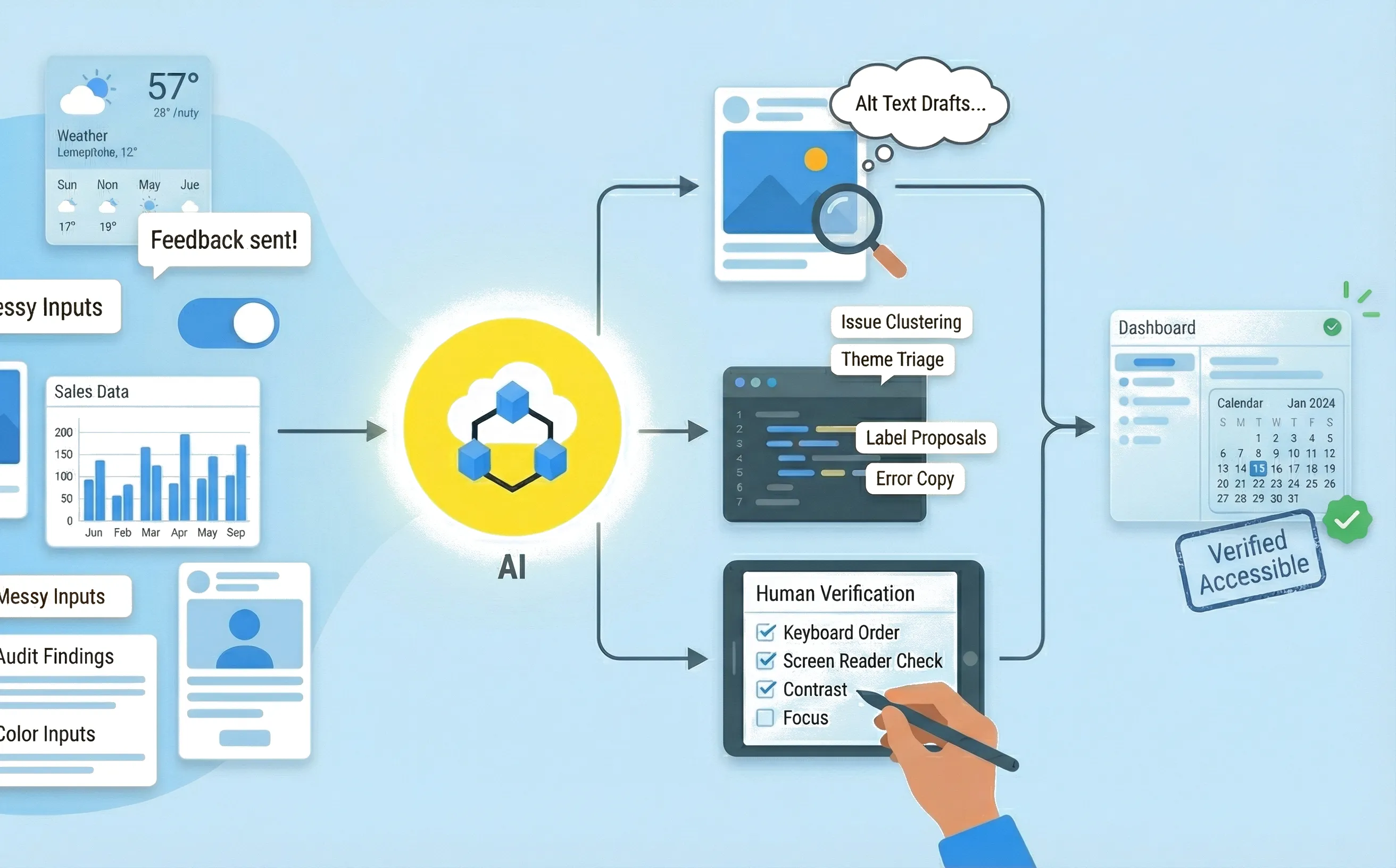
Accessibility work usually doesn’t fail because teams don’t care. It fails because it’s time‑expensive, scattered across tickets, and full of “we’ll come back to it.”
AI can help—a lot—but only if you treat it like what it is: a drafting and pattern‑finding tool, not a compliance oracle.
The goal of this post is simple: move faster on accessibility without shipping confident mistakes.
AI is a multiplier, not a judge
AI is great at turning messy inputs into usable outputs:
- summarising audit results
- clustering issues into themes
- proposing fixes and alternative copy
- spotting repeated patterns across screens
But accessibility isn’t just text. It’s behaviour: focus, keyboard order, announcements, reduced motion, reflow, error recovery. AI can’t “feel” what your interface feels like with assistive tech.
So the rule is: AI drafts. Humans verify.
The workflow that actually works (and scales)
If you want AI to help consistently, you need a repeatable loop.
1) Baseline signals (automation + quick manual pass)
Start with what’s fast and objective:
- automated checks (lint/axe-style audits) to catch obvious misses
- a quick keyboard pass for your main flows
- a quick zoom/reflow pass (200%+)
- a quick reduced‑motion check for key interactions
You’re not trying to certify anything here. You’re building a clean input set.
2) AI triage (turn 50 findings into 5 problems)
Feed the findings into AI and ask it to:
- group issues by root cause (e.g., “missing labels”, “focus loss”, “status not announced”)
- rank by user impact (task blockers first)
- propose the smallest fix that improves the experience
This is where AI saves hours: it’s good at turning a long, repetitive list into a plan.
3) AI‑assisted fixes (draft the words, propose the patterns)
Now you use AI where it shines: generating first drafts quickly.
This includes:
- alt text drafts
- labels and “name” improvements (buttons, links, controls)
- error messages that actually help
- suggestions for better heading structure
- careful ARIA suggestions only when semantics aren’t enough
4) Human verification (non‑negotiable)
Before anything merges, validate behaviour:
- keyboard only
- screen reader sanity check
- zoom/reflow
- contrast
- reduced motion
- error recovery
Accessibility is not “we ran a tool.” It’s “a human can complete the task.”
5) Guardrails (stop regressions)
The final step is what makes this stick:
- bake patterns into components
- add checklists to PR templates / Definition of Done
- keep a small prompt library for alt text and error copy
- write “known good” examples into your design system
Where AI helps most (with examples you can use)
Alt text drafts (faster, more consistent)
Alt text is often delayed because it feels subjective. AI helps by giving you options fast—but you must supply context.
Good input to AI:
- what the image is for (inform, decorate, instruct)
- what the user should learn from it
- surrounding copy and the page intent
Then ask for 2–3 versions: “short”, “functional”, “screen‑reader friendly”.
What you’re avoiding: hallucinated details (“this image shows…”) and marketing fluff.
Labels and control names (quietly huge impact)
A “premium” accessibility fix is often just making the interface say what it is.
AI can propose clearer names for:
- icon buttons (what does the icon do?)
- ambiguous CTAs (“Submit”, “Continue”, “Done”)
- repeated links (“Read more” everywhere)
- toggles (“Enable” what, exactly?)
Your job is to choose the simplest version that’s still specific.
Error messages that reduce drop‑off
Most error states fail at one thing: they don’t tell people what to do next.
AI can draft error copy using a consistent pattern:
- what happened
- where it happened
- how to fix it
- what happens if they retry
The big human check: keep the tone calm, avoid blame, and don’t over‑promise.
Heading and structure repair (scannable and accessible)
AI can help rewrite headings into a clean outline and spot structural problems (jumps, repeated headings, missing headings). It’s also useful for turning long paragraphs into a scannable structure—without losing meaning.
Where AI creates risk (and how to prevent it)
Risk 1: Confident hallucinations
Mitigation: require the AI to output an “Assumptions” section, and treat assumptions as blocked until confirmed.
Risk 2: “ARIA everywhere”
AI loves to recommend ARIA attributes. That can be dangerous.
Mitigation:
- prefer native semantics first
- use ARIA only when you need it
- cross-check with authoritative patterns
Risk 3: Passing automation ≠ accessible
Mitigation: keep a human verification checklist in your definition of done. Automation is a net, not a verdict.
Human verification checklist (keep it short, but real)
- Keyboard: visible focus, sensible tab order, no traps, all actions reachable
- Screen reader sanity: controls have names, state changes are announced when needed, no confusing repetition
- Zoom/reflow: content still works at 200%+ without sideways scroll for core flows
- Contrast: key text and UI states remain readable
- Reduced motion: critical interactions still communicate status without animation
- Error recovery: user input isn’t lost, next step is clear
If you do only one thing: don’t let errors wipe context. That’s where accessibility and UX meet.
Conclusion
AI can make accessibility work faster and more consistent—if you treat it like a drafting assistant inside a human‑verified workflow.
Use AI to triage, draft, and standardise. Use humans to validate behaviour, catch edge cases, and make final calls. When you combine both, accessibility stops being a heroic effort and becomes what it should be: part of how you ship.